How to Install Token of Trust Identity & Age Verification on BigCommerce
Token of Trust Identity & Age Verification helps BigCommerce merchants add identity or age verification to their customer journey. The app provides a guided setup experience within BigCommerce, so you can connect your Token of Trust account and configure verification without building a custom integration.
This guide walks you through installing Token of Trust, completing the initial setup, checking your installation, and running your first test.
Before you install
Before getting started, make sure you have:
- Access to your BigCommerce store admin
- Permission to install apps on your store
- A supported BigCommerce checkout configuration
The current Token of Trust integration is designed to work with Optimized One-Page Checkout. Stores with heavily customized checkout experiences may require additional configuration.
You do not need an existing Token of Trust account to get started. During setup, you can create a new account or connect an existing one.
1. Install Token of Trust
Install Token of Trust Identity & Age Verification from the BigCommerce App Marketplace.
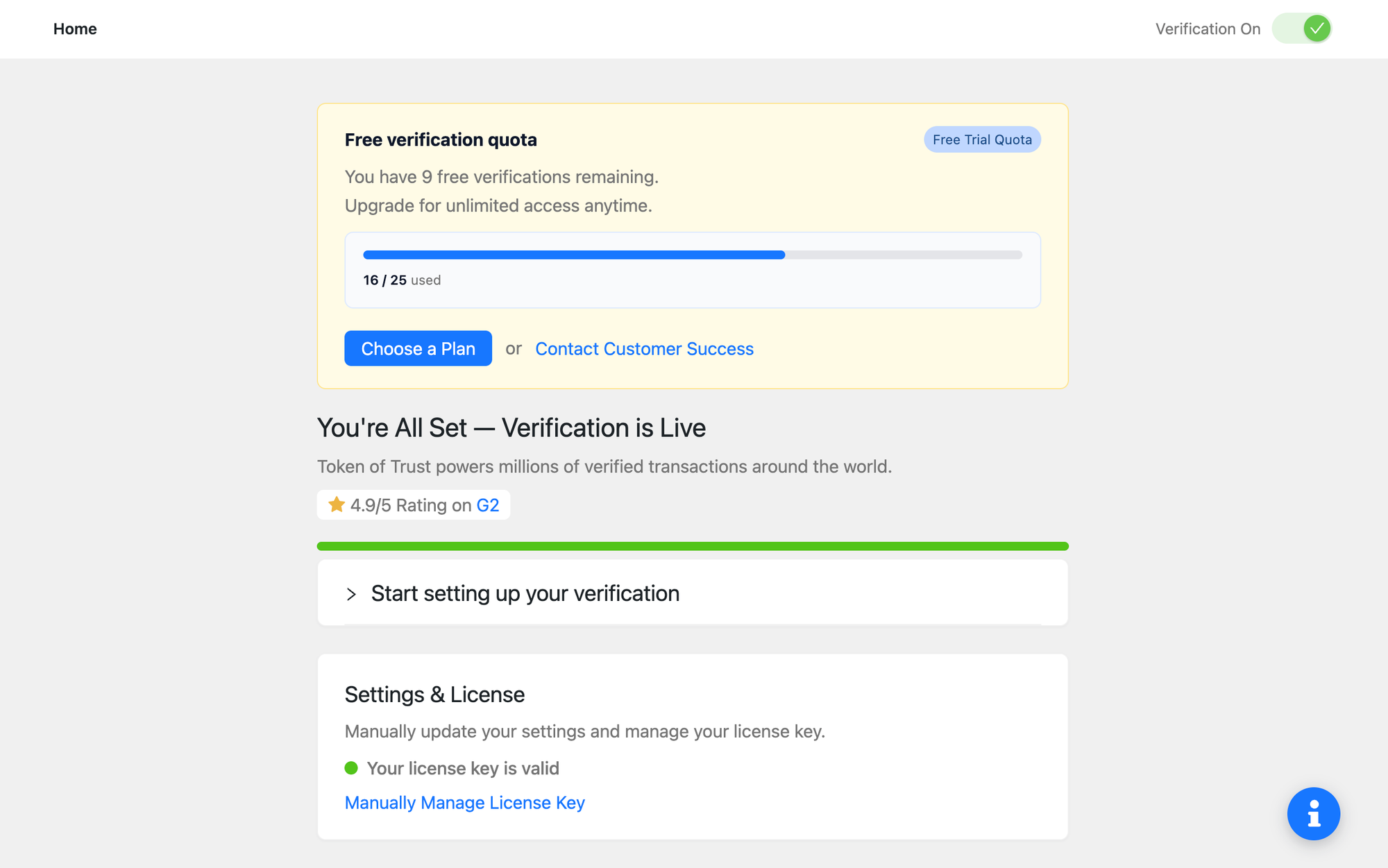
Once installation is complete, open Token of Trust from your BigCommerce admin.
Expected result: The Token of Trust home screen appears, where you can start setting up Identity/KYC or Age Verification.
2. Choose your verification type
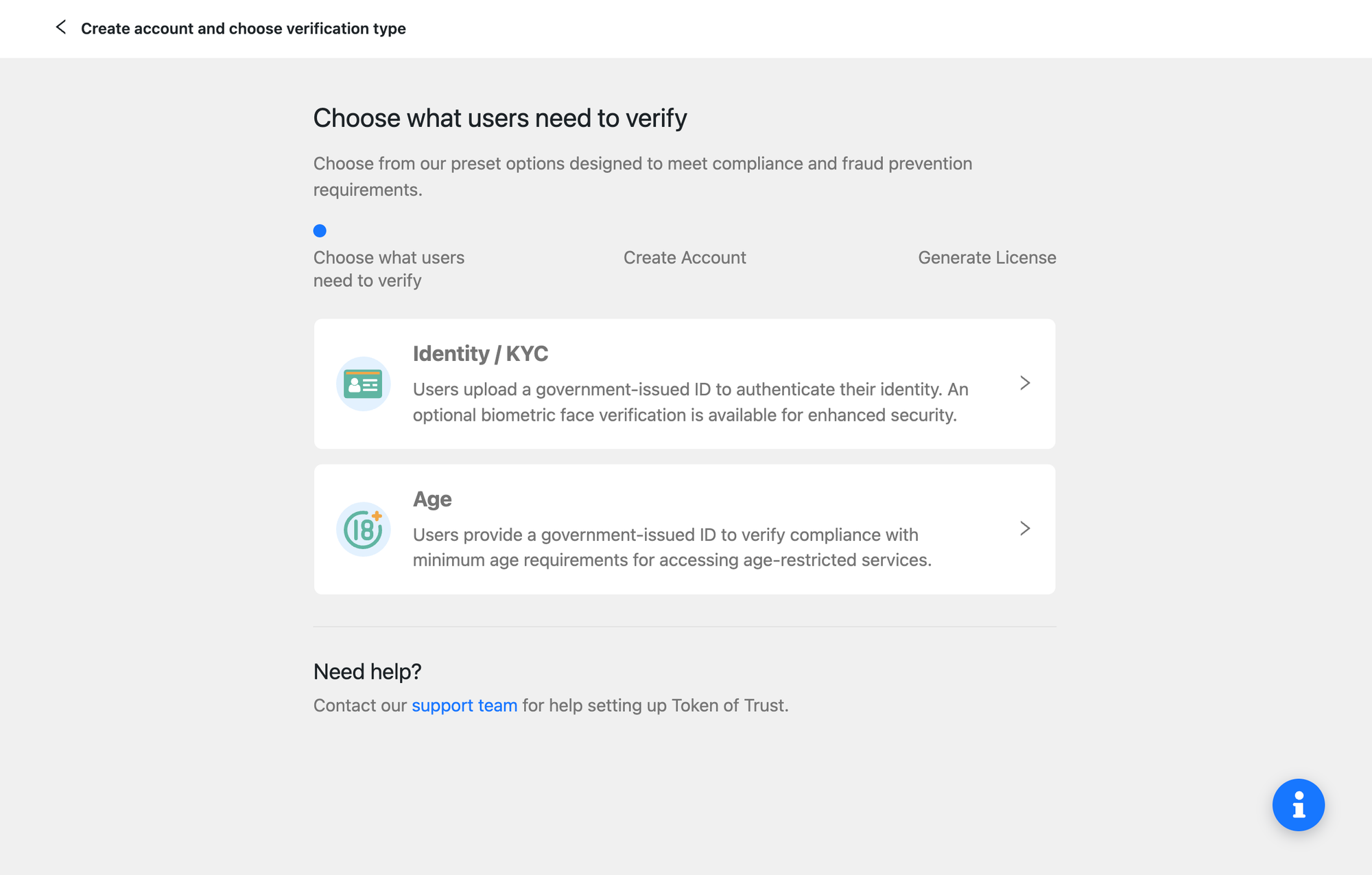
Choose the type of verification you want to configure.
Identity/KYC
Choose Identity/KYC when you need to verify a customer's identity. Token of Trust can use a government-issued ID as part of the identity verification process, with additional verification options available based on your needs.
Age Verification
Choose Age Verification when you need to confirm that customers meet an age requirement for an age-restricted product or experience.
Select Get Started for the verification type you want to configure and continue through the guided setup.
Note: Choose your verification configuration based on your business requirements. Your organization is responsible for determining which verification and regulatory requirements apply to your business.
3. Create or connect your Token of Trust account
The guided setup will prompt you to connect your BigCommerce store to Token of Trust.
You can:
- Create a Token of Trust account if you are new to Token of Trust.
- Connect an existing account if your organization already uses Token of Trust.
Follow the prompts to complete your account setup and connect your Token of Trust license.
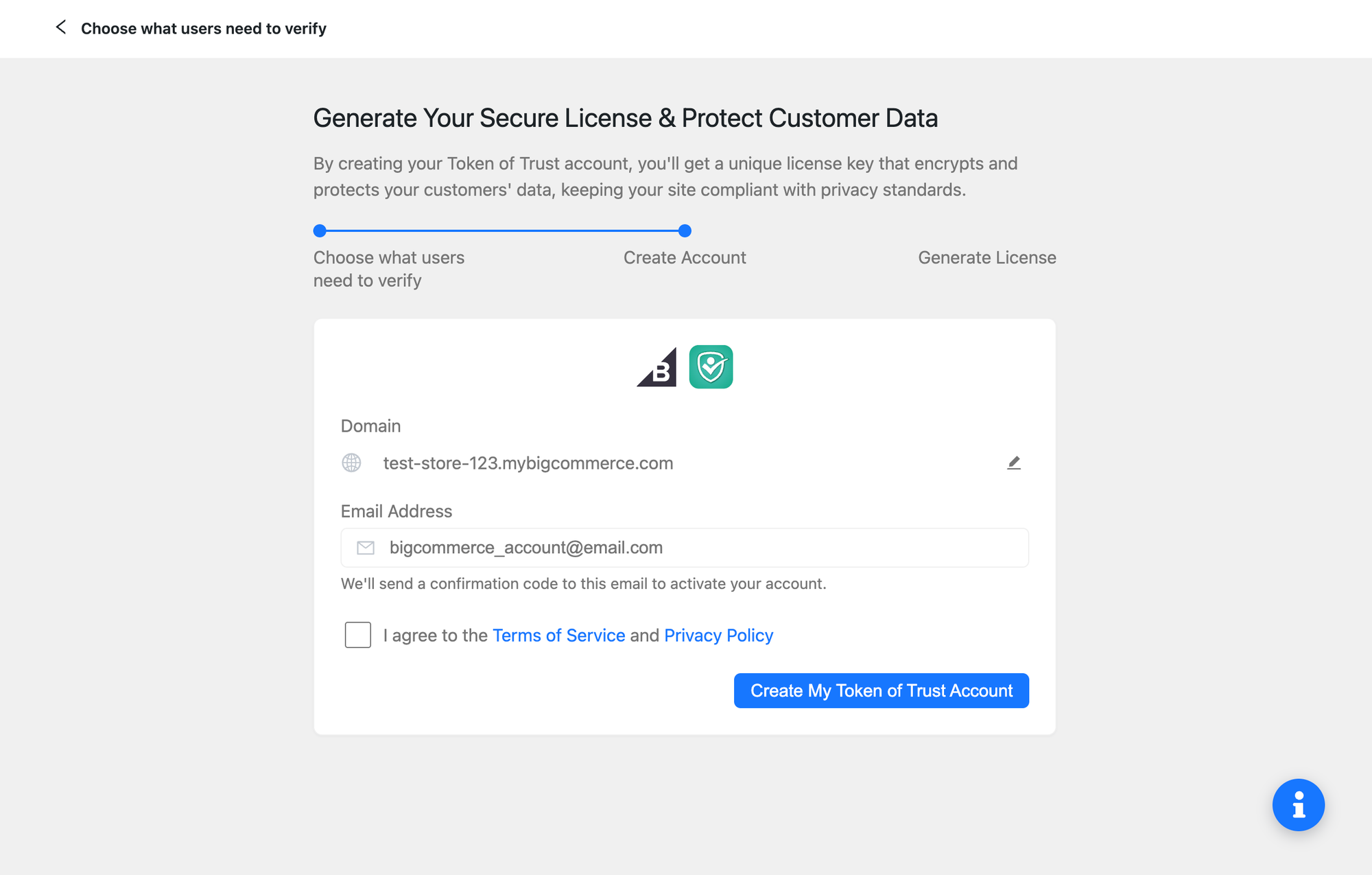
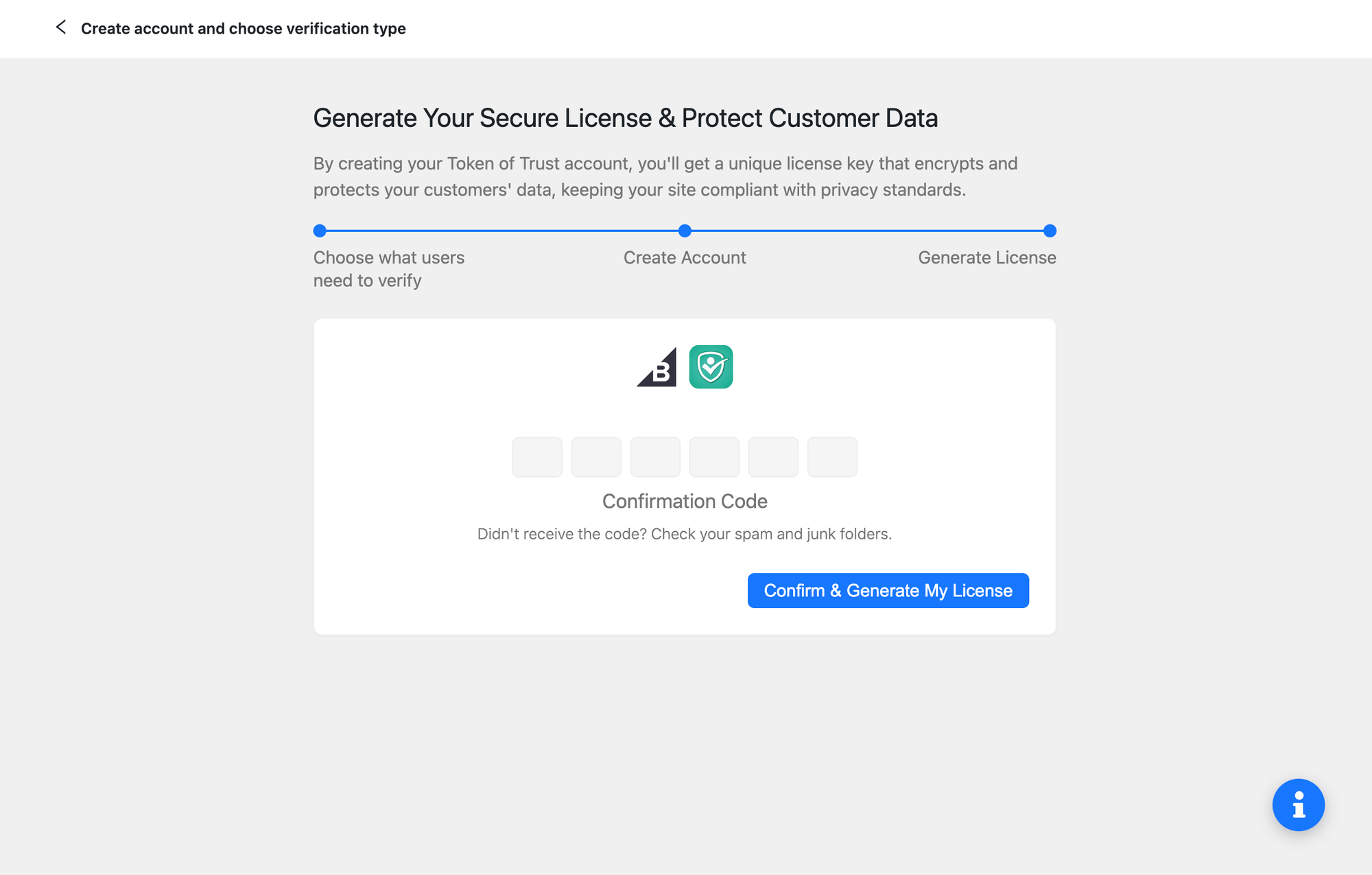
Expected result: Your Token of Trust account and license are connected to your BigCommerce store.
4. Configure checkout verification
Next, configure how Token of Trust verification should work during checkout.
Verification is off unless it is explicitly enabled. For verification to run through the standard checkout experience, you must activate verification and enable checkout verification.
Choose when verification happens
Token of Trust supports two verification points:
Pre-checkout verification: Verification takes place as the customer proceeds through checkout, before the order is completed.
Post-checkout verification: Verification takes place after the order is placed and is presented on the order confirmation page.
Choose the option that fits your customer journey and business requirements.
5. Choose the address used for verification
Token of Trust can use either the customer's shipping address or billing address as the address basis for verification.
Choose the appropriate address option during configuration when available. If an address basis has not been specified, the current integration falls back to the billing address.
6. Check your setup health
During the standard setup process, Token of Trust automatically provisions the order webhooks and storefront scripts required for the integration. You do not need to configure these components manually.
Use Setup Health Check to confirm that your installation is configured correctly.
The app provides setup and connection status for components including your API connection, Token of Trust account, webhooks, and storefront setup.
If the health check identifies a missing component, use the available option to re-run the check before testing your installation. The setup health functionality can restore missing components where supported.
You can also review License & API if you need to check your license configuration or investigate a connection error.
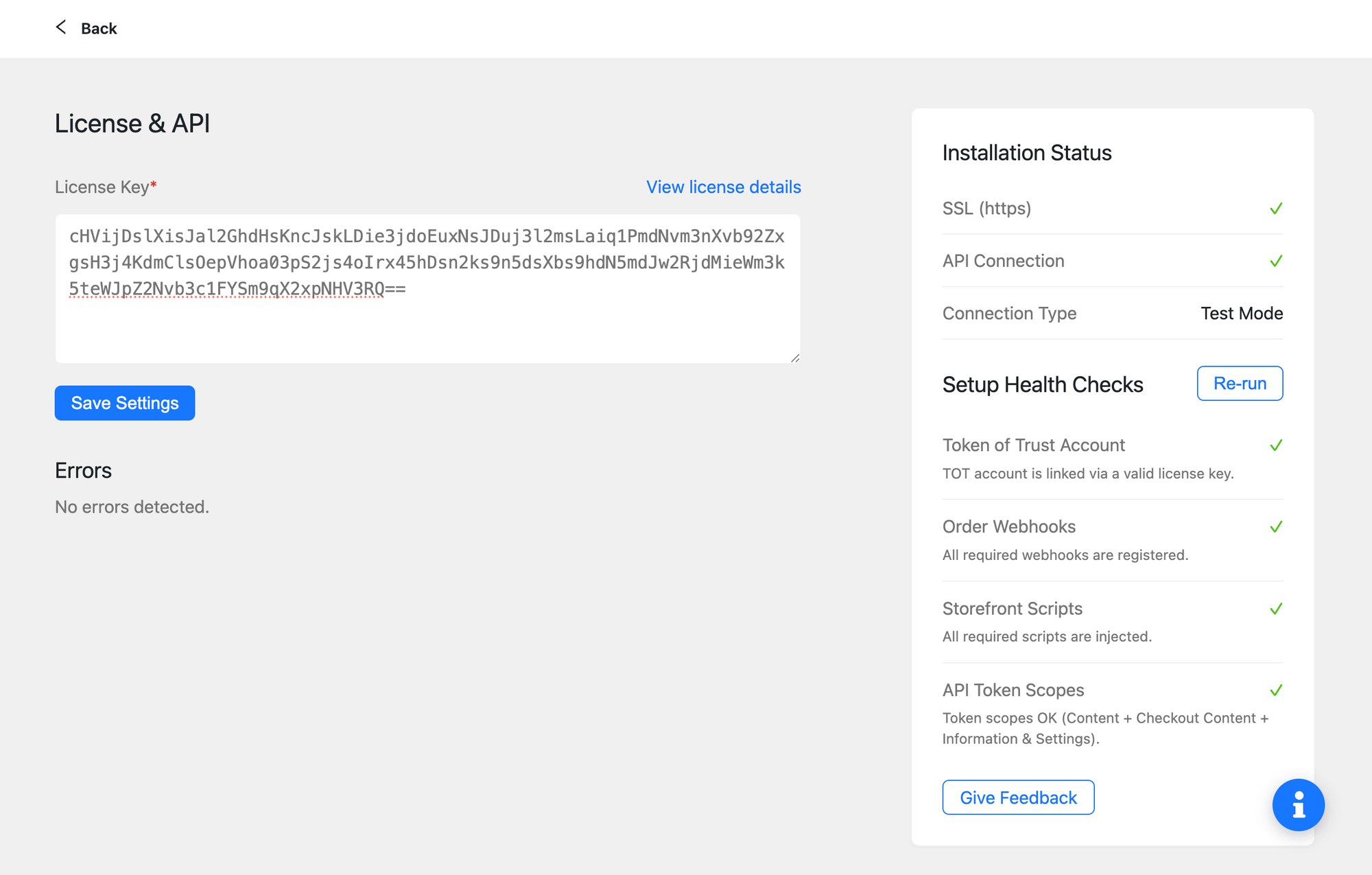
Expected result: Your Token of Trust connection and required setup components are ready for testing.
7. Test your installation
Run a test through your storefront to confirm that Token of Trust is working as configured.
- Confirm that your Token of Trust account and license are connected.
- Confirm that verification is activated and checkout verification is enabled.
- Confirm that Setup Health Check does not show unresolved setup issues.
- Open your storefront and proceed through the customer checkout experience.
- Enter the customer information needed for your test.
- Continue until the Token of Trust verification experience appears.
- Complete the verification process.
- If you configured pre-checkout verification, complete the order after verification. If you configured post-checkout verification, complete verification from the order confirmation experience.
- Check the associated BigCommerce order for the verification result.
Token of Trust records the verification outcome on the associated order as tot.VerificationStatus. A verification that meets the configured Token of Trust conditions receives a Cleared status.
[Screenshot: Verification Status on BigCommerce Order]
Expected result: The Token of Trust verification experience appears at the configured point in the customer journey, and a verification result is associated with the order.
Troubleshooting installation issues
Verification does not appear during testing
Confirm that verification is activated and checkout verification is enabled. Then run Setup Health Check and make sure there are no unresolved storefront setup issues.
Also confirm that your store uses a supported Optimized One-Page Checkout configuration. Heavily customized checkout experiences may require additional configuration.
Setup Health Check reports a problem
Re-run Setup Health Check to check the required storefront and webhook components again. If the issue remains, contact Token of Trust Support.
My account or license shows a connection error
Review License & API in the Token of Trust app and confirm that your account and license are connected correctly. Resolve any displayed connection errors before testing verification again.
Installation complete
Once the verification experience appears as configured and the expected result is associated with your test order, your Token of Trust BigCommerce installation is ready to use.
See the Token of Trust Identity & Age Verification for BigCommerce User Guide to learn how to manage verification settings, understand verification statuses, review the customer experience, and troubleshoot common issues.
For additional help, contact support@tokenoftrust.com.